

Start an app with Cloudzyro Agent
This page shows how to start a new app: what to write, what you can attach, and how to choose between planning first and building straight away.
Start a new app
Section titled “Start a new app”-
In the console, select Cloudzyro Agent in the sidebar. You see What shall we build, with a message box.
-
Describe what you want. The more the Agent knows, the closer the first version. For a website, say:
- what the business does and who the site is for, such as “a salon in Austin for busy professionals”;
- what visitors should do: book, call, buy, visit or sign up;
- the pages you need, such as Home, services, prices, about and contact;
- your logo, colors and fonts, and any text or photos you already have.
-
Choose Plan or Build next to the send button. Plan is selected to start with.
-
Press Enter, or select the send button. Use Shift+Enter for a new line.
Your app opens on its own page, with the chat on the left and the preview on the right. Its name comes from what you asked for; you can rename it at any time.
Plan or Build
Section titled “Plan or Build”- Plan: questions and a plan first. Nothing in your app changes yet. Best for anything with several pages, forms, sign-in or bookings, or when you’re still deciding what you want. See Plan, then build.
- Build: the Agent starts building straight away. Good for a single page or a quick idea you want to see.
Both use credits. A planning message usually uses less than one.
Add files, skills and connectors
Section titled “Add files, skills and connectors”Select + in the message box to open the menu.
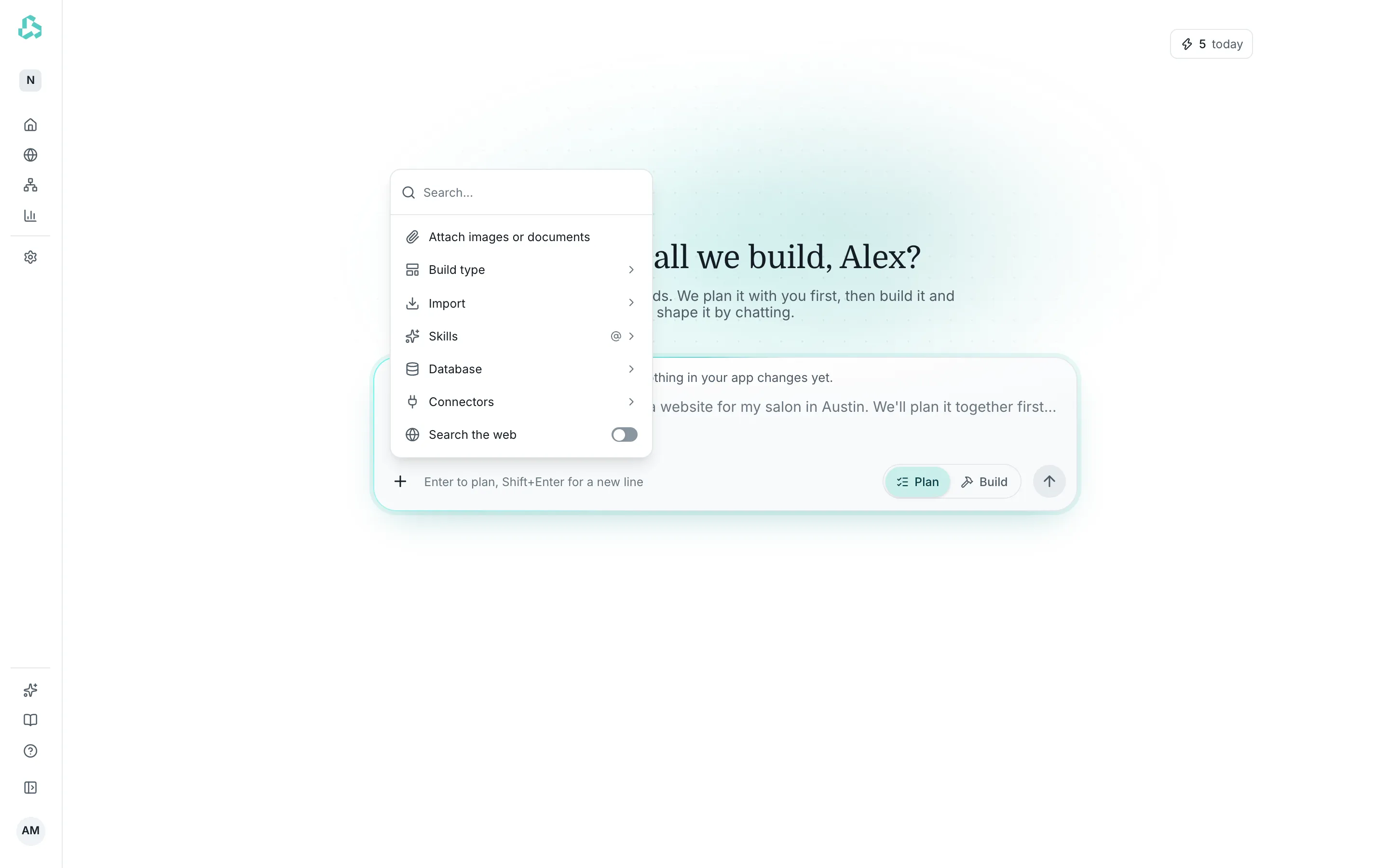
- Attach images or documents: up to 10 images a message (PNG, JPEG, WebP or GIF, up to 10 MB each) and up to 3 documents (PDF, Word or PowerPoint, up to 20 MB each). The Agent reads them, and can use your pictures in the app. You can also drag files onto the message box.
- Build type: tell the Agent you’re making a website, a web app, a prototype or a presentation. If you skip it, the Agent works it out.
- Import: bring in an app you already have. See Import an app.
- Skills: choose one of your workspace’s skills for this message. See Teach the Agent with skills.
- Database and Connectors: connect Supabase for a database and sign-in, or Resend for email. See Connect Supabase and Resend.
- Search the web: in Plan mode, let the Agent look at up to 3 websites while it plans, for example to see how others lay out a timetable.
Speak instead of typing
Section titled “Speak instead of typing”-
Select Speak your message (the microphone) in the message box. The first time, your browser asks to use your microphone: allow it.
-
Talk. You can record for up to 3 minutes.
-
Select Done, turn it into text. Your words appear in the message box.
-
Check the text, change anything that’s wrong, then send it.
Your recording is turned into text and isn’t kept. Only the text comes back to you, and nothing is sent to the Agent until you send it.