

Workspaces and your team
A workspace holds sites, Web Hosting, domains, a team and billing. Use one per client, brand or project. Inviting people is free on every plan: there are no per-seat charges.
Your personal workspace
Section titled “Your personal workspace”You get a personal workspace when you sign up, and you’re always its owner. You can rename it, but you can’t leave it or delete it.
Create a workspace
Section titled “Create a workspace”-
Select the workspace name at the top of the sidebar, then Create workspace. You can also go to Workspaces in the sidebar.
-
Enter a Name, for example a client’s business name.
-
Check the Console address. It’s permanent, so you can’t change it later.
-
If you’re an owner or admin of the current workspace, choose whether to share the new one with its team. Shared, its owners and admins are in it from the start; otherwise it’s yours alone.
-
Select Create workspace.
Sites in a new workspace start on Launch, which is free. Anything you pay for there is billed to that workspace.
Switch between workspaces
Section titled “Switch between workspaces”Select the workspace name at the top of the sidebar to see every workspace you’re in. Type to find one, or select All workspaces to open the Workspaces page, which also shows who has access to which workspace.
Invite people
Section titled “Invite people”Owners and admins can invite people.
-
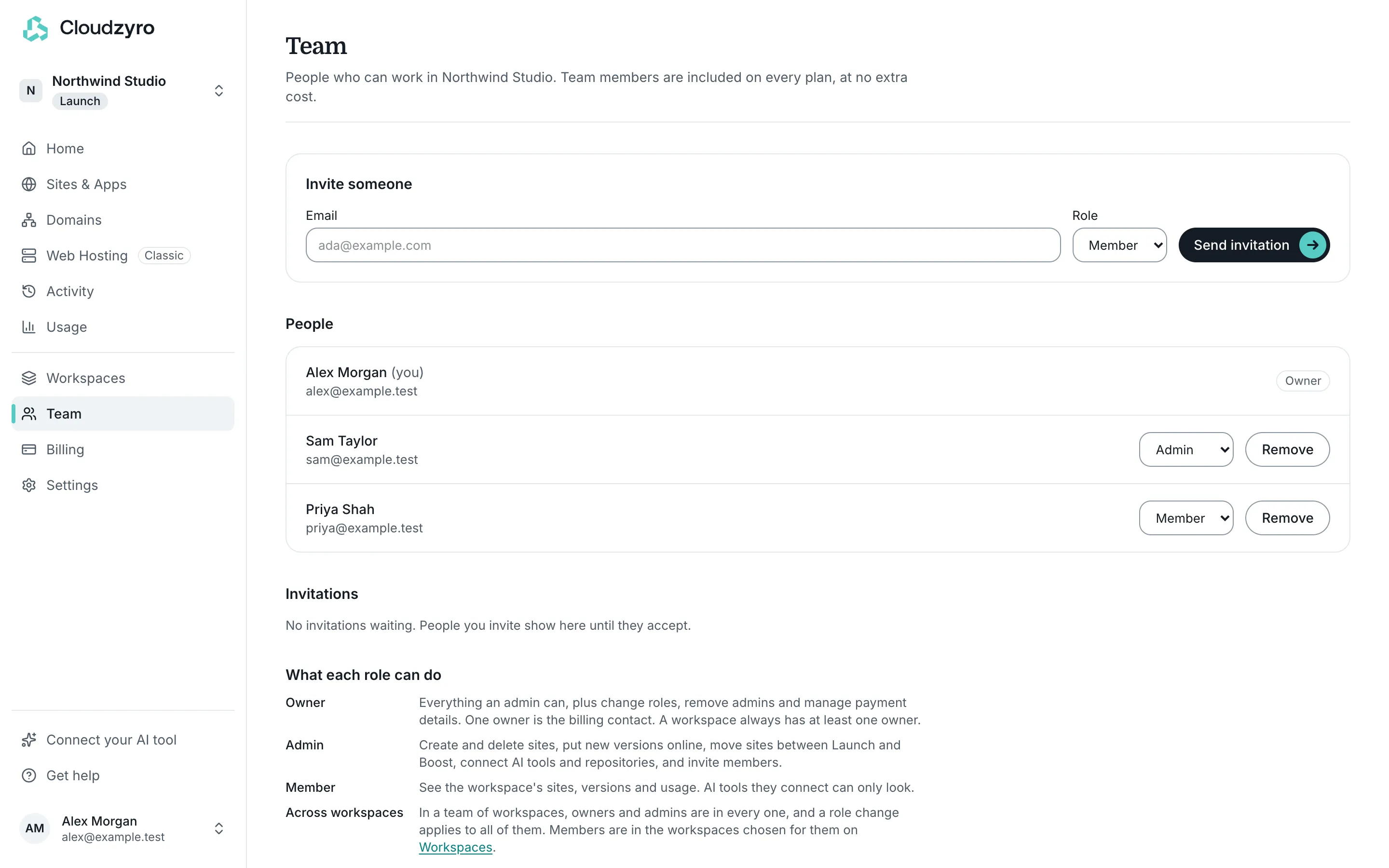
Go to Team in the sidebar.
-
Under Invite someone, enter their Email and choose a Role: Member or Admin. Only owners can invite admins.
-
Select Send invitation.
We email them a link to Join the workspace. They sign in, or create an account, with the email address you invited. Invitations work for 7 days and show under Invitations until accepted, with Resend and Cancel. A workspace can have up to 50 people.
What each role can do
Section titled “What each role can do”| What they can do | Owner | Admin | Member |
|---|---|---|---|
| See sites, versions and usage | Yes | Yes | Yes |
| Create and delete sites, put new versions online | Yes | Yes | No |
| Move sites between Launch and Boost | Yes | Yes | No |
| Connect AI tools and repositories that can make changes | Yes | Yes | No (their AI tools can only look) |
| Add domains to sites, change environment variables | Yes | Yes | No |
| Change Web Hosting plans, cancel hosting | Yes | Yes | No |
| Invite people | Yes | Members only | No |
| Remove people | Anyone | Members only | Themselves |
| Change roles | Yes | No | No |
| Be the billing contact | Yes | No | No |
A workspace always has at least one owner. One owner is the billing contact, who gets the receipts (see Billing and invoices).
Across workspaces: when workspaces are shared as a team, owners and admins are in every one of them, and a role change applies to all of them. Members are only in the workspaces chosen for them on the Workspaces page.
Change a role or remove someone
Section titled “Change a role or remove someone”On Team, owners can change anyone’s role from the menu beside their name. To remove someone, select Remove. To leave a workspace yourself, select Leave beside your own name. If you’re the only owner, make someone else an owner first.
Activity
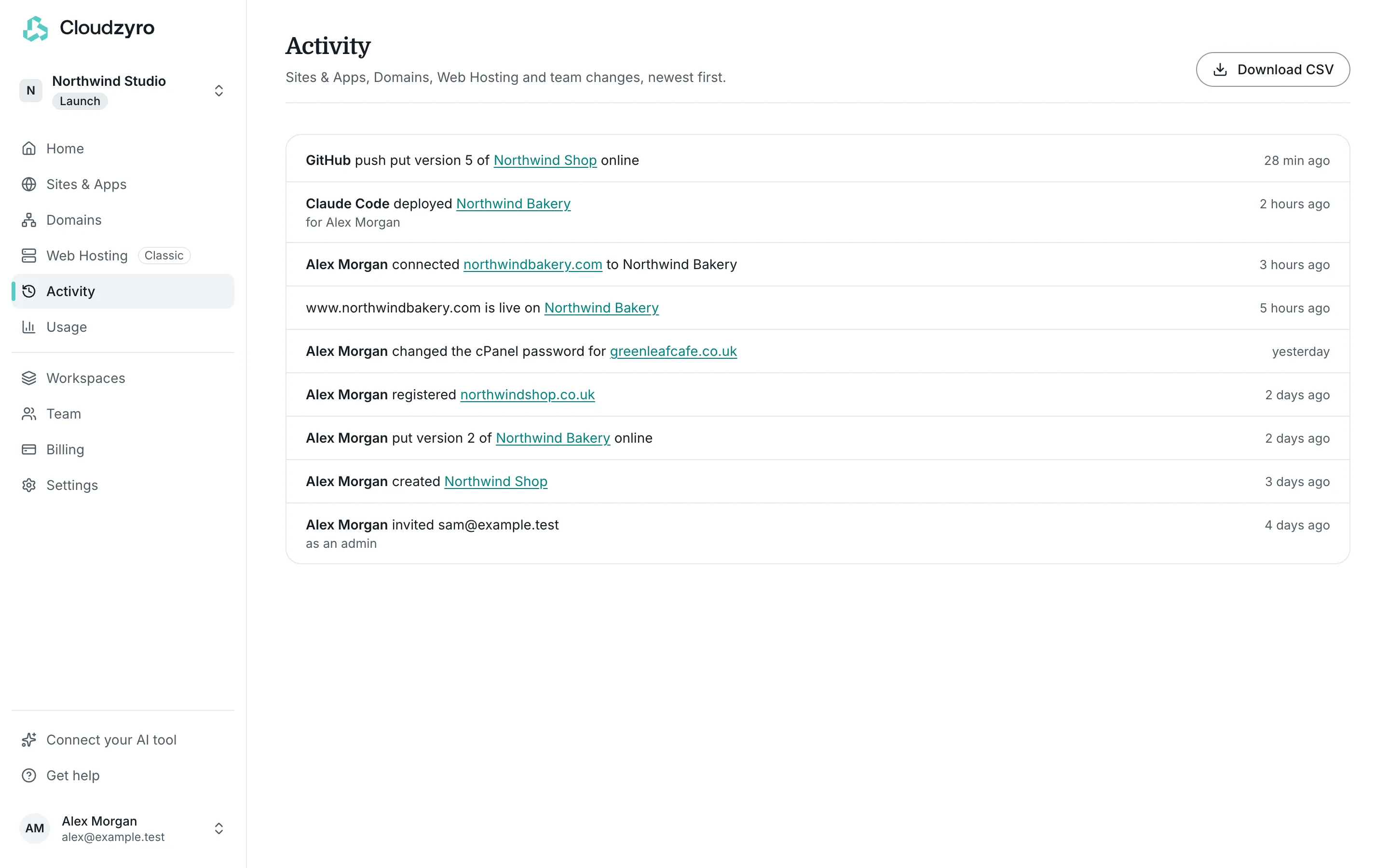
Section titled “Activity”Activity in the sidebar lists what happened in the workspace, newest first: deploys and other site changes, domains, Web Hosting, plan and team changes. Select Download CSV for a spreadsheet of the latest events.
Settings
Section titled “Settings”Settings in the sidebar holds the current workspace’s settings, in tabs:
- General: the workspace’s name and logo, its console address and workspace ID, and your role.
- Notifications: your own choices for emails about deploys (Email me every time, Only for deploys I started or Don’t email me), traffic alerts and the weekly summary. Everyone in the workspace chooses for themselves.
- Security: who can be invited, and whether members’ AI tools can connect (Everyone, where members’ tools can only look, or Owners and admins only). Only owners can change these.
- Integrations: the repositories and AI tools connected to the workspace.
- Advanced: pause automatic deploys from connected repositories for every site at once, download Activity, and leave or delete the workspace.
Delete a workspace
Section titled “Delete a workspace”Only an owner can delete a workspace, and only when nobody else is in it: remove the other people on Team first. Go to Settings, Advanced, type the workspace’s name to confirm and select Delete workspace. Its sites go offline and are deleted with every version and address. This can’t be undone.
Your own name, email and sign-in methods aren’t workspace settings: they’re in Your account. See Sign up and sign in.