

Understand your site's usage and limits
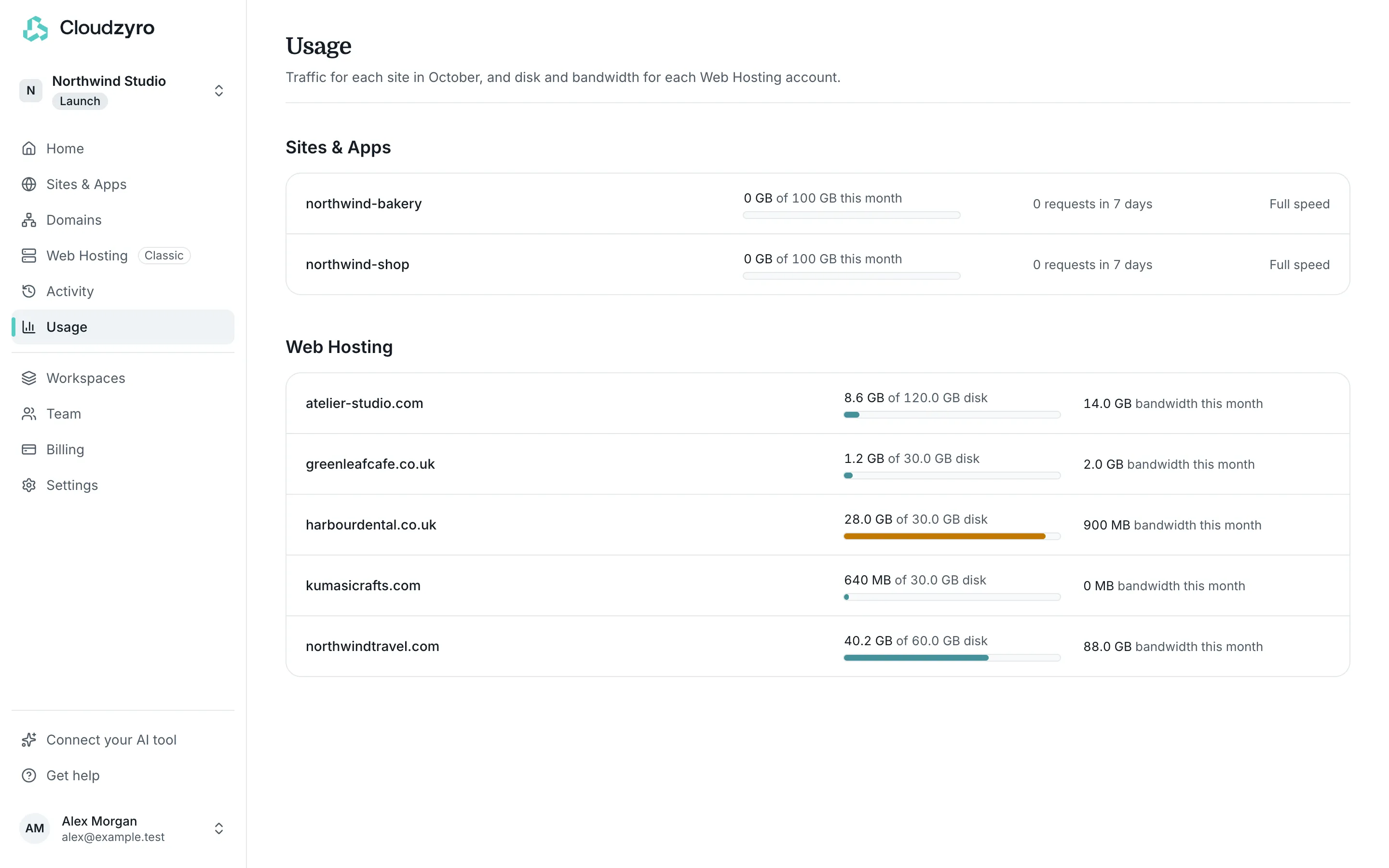
Each site’s Usage tab shows its traffic this month, its last 7 days of visits and how hard it’s working. This page explains the numbers and the limits behind them. For a summary of every site in a workspace, open Usage in the sidebar.
Traffic
Section titled “Traffic”Traffic is the data your site sends to visitors. Each plan includes an allowance for the month:
| Plan | Traffic each month |
|---|---|
| Launch | 100 GB |
| Boost | 1 TB |
The bar at the top of the Usage tab shows how much your site has used and when the count resets.
Going over never takes your site offline
Section titled “Going over never takes your site offline”If a site uses all its traffic, it stays online for everyone and every visitor still gets an answer. It’s slowed to 2 Mbit/s until the month resets, so pages load more slowly. Nothing is charged for going over: there are no overage charges.
We email the workspace’s owners when a site reaches 80% of its allowance, and again at 100%.
To get back to full speed before the month ends:
- Launch: move the site to Boost for 1 TB a month. See Choose a plan.
- Boost: add a traffic pack on the Usage tab: +500 GB for $12 or +1 TB for $20, plus tax, for the current month. You can add up to 3 packs per site a month. They’re never added automatically.
Attacks aren’t counted
Section titled “Attacks aren’t counted”Traffic that Cloudflare blocks as an attack isn’t counted. If you see traffic you don’t recognise, click Tell us and we’ll check it at the bottom of the Usage tab. We’ll look at it and email you by the end of the next working day. If it was an attack, we take that traffic off your count, and if that brings the site back under its allowance, full speed returns straight away.
Last 7 days
Section titled “Last 7 days”Updated every minute, this section shows Requests (each page view is usually several), Data sent, Response time and Errors, with a chart by the hour. Numbers appear a few minutes after your site’s first visitor. Basic stats like these are included on every plan.
Memory and CPU
Section titled “Memory and CPU”| Plan | Memory | CPUs |
|---|---|---|
| Launch | 512 MB | 1 |
| Boost | 2 GB | 2 |
The Memory and CPU section shows how close your site gets to these limits over the last 7 days, for example “Well within its limit” or “Busy at times, still fine”.
If a site often reaches its CPU limit, it’s held back, so pages can be slower. If it runs out of memory, it’s restarted and comes back online by itself. The Usage tab tells you when either happens. Make the site use less, move it to Boost, or on Boost add CPU and memory in the site’s Billing tab.
Storage
Section titled “Storage”Site files shows the size of the live version against your plan’s limit for each version: 100 MB on Launch, 1 GB on Boost. Versions kept shows how many versions you can restore. See Upload your site’s files and Restore or download a version.
No permanent disk
Section titled “No permanent disk”Files your site writes while it runs are temporary. They’re cleared each time a new version goes online or you restore one. Keep data like bookings, accounts or uploads in a database.
If a running site writes more temporary files than its plan allows, we restart it, which clears them, and email the owners:
| Plan | Temporary files |
|---|---|
| Launch | 2 GB |
| Boost | 5 GB |
Build time limit
Section titled “Build time limit”A build can take up to 15 minutes. If it takes longer, it’s stopped and that version doesn’t go live. Your current version stays online, and the deploy page explains what happened.