

Use cPanel
cPanel is where you manage your hosting’s website files, email accounts, databases, WordPress and more. You open it from the console, so there’s no separate cPanel login to remember.
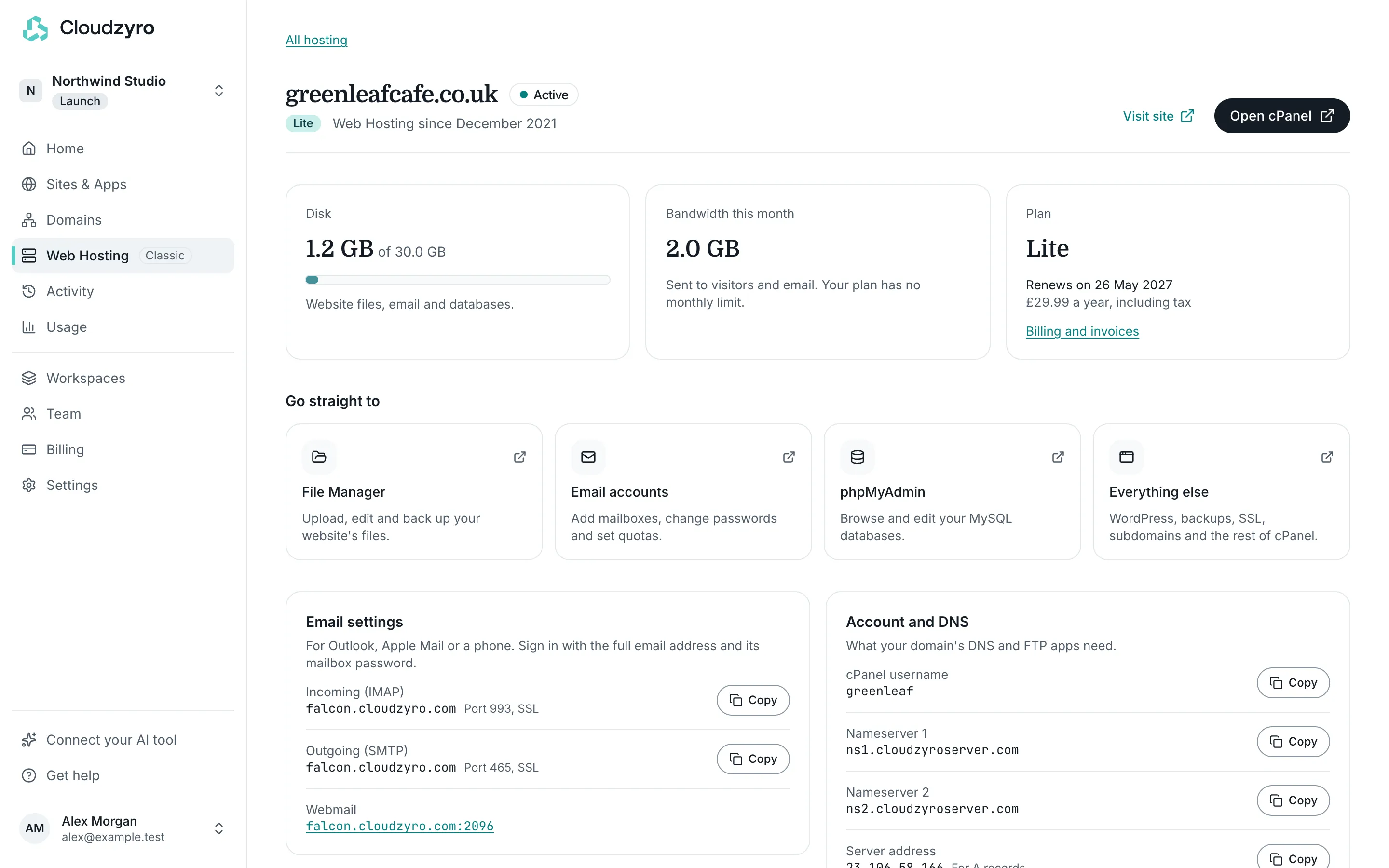
Open cPanel
Section titled “Open cPanel”-
In the console, open Web Hosting.
-
Click cPanel on the account’s row, or open the account and click Open cPanel.
cPanel opens in a new tab, already signed in. Each click makes a fresh, one-time sign-in, so no cPanel password is stored or shown in the console.
Anyone in the workspace can open cPanel. The button shows only while the account is active: a suspended account can’t be opened.
If you see We couldn’t open cPanel just now, try again in a minute. If it keeps happening, email support@cloudzyro.com.
Go straight to a tool
Section titled “Go straight to a tool”On an account’s page, under Go straight to, shortcuts open cPanel at the right place:
- File Manager: upload, edit and back up your website’s files.
- Email accounts: add mailboxes, change passwords and set quotas. See Set up email.
- phpMyAdmin: browse and edit your MySQL databases.
- Everything else: WordPress, backups, SSL, subdomains and the rest of cPanel.
Change the account’s password
Section titled “Change the account’s password”The account’s password is used for cPanel, FTP and the account’s databases. You don’t need it to open cPanel from the console, but FTP apps and some tools do.
-
In Web Hosting, open the account.
-
Under Account and DNS, click Change password.
-
Type a new password, or click Make a strong one to have one made for you.
-
Click Change password.
The password must be at least 12 characters and mustn’t contain the username or the domain’s name. Save it in your password manager: we don’t keep a copy.
It replaces the current password for cPanel, FTP and the account’s databases. Websites keep working, but update any app or tool that signs in with the old password.
Only owners and admins of the workspace can change the password.
Your cPanel username
Section titled “Your cPanel username”The account’s cPanel username is shown in the Web Hosting list under the domain, and on the account’s page under Account and DNS, with a button to copy it. FTP apps need it along with the password.