

Restore or download a version
Each time you deploy, whether by upload, AI tool or a push to your repository, we keep that version of your site. You can switch back to an earlier one in a click, and download the files of any version.
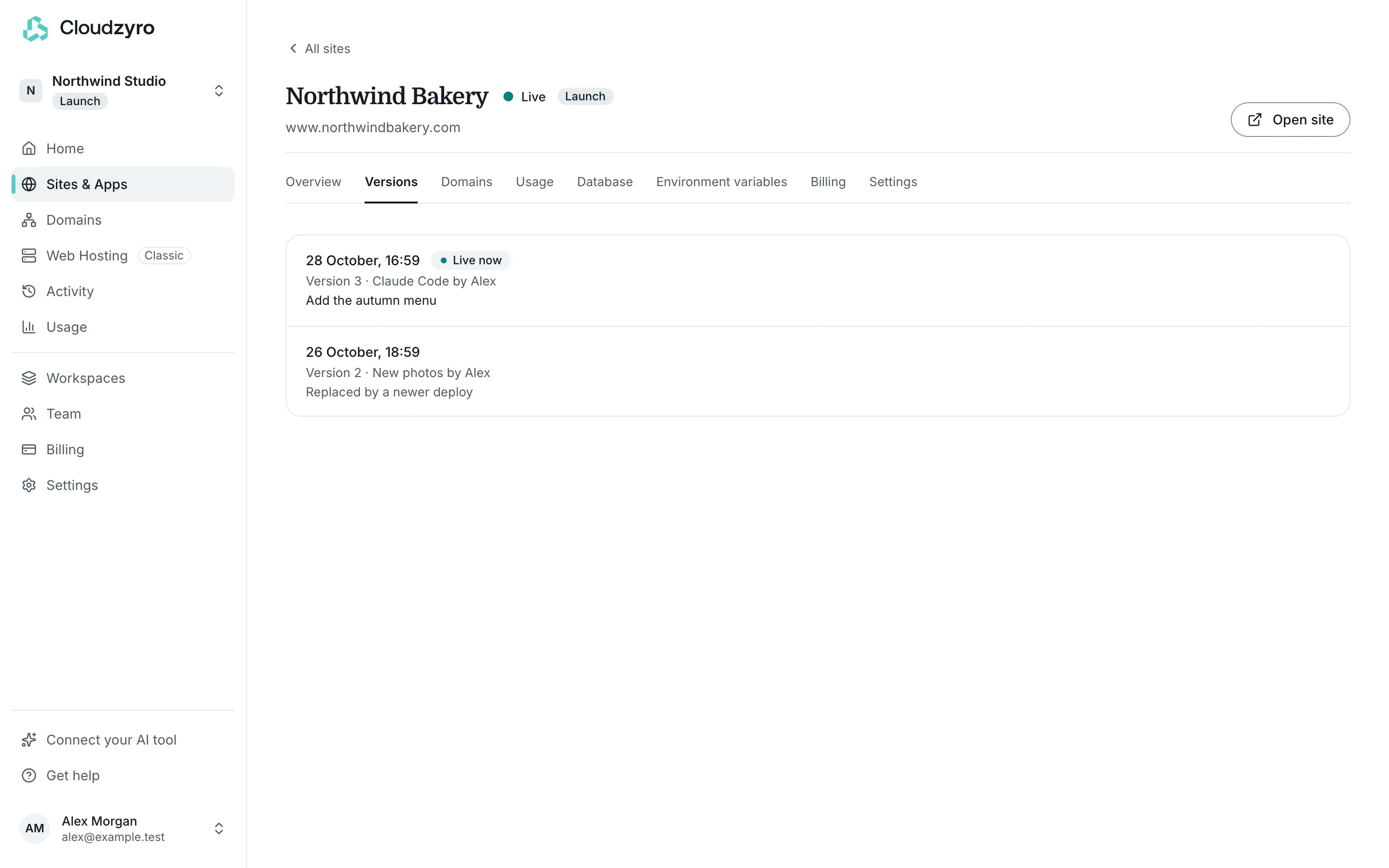
See your versions
Section titled “See your versions”Open your site and go to its Versions tab. Every deploy is listed, newest first, with:
- when it happened and its version number
- how it was made (an upload, an AI tool or a commit) and what changed, if a message was given
- whether it went live, and how long it took to build
- Live now beside the version visitors are seeing
Click a version’s date to see its deploy page. For a version that didn’t go live, click See what went wrong.
Restore an earlier version
Section titled “Restore an earlier version”-
On the Versions tab, find the version you want and click Restore.
-
Check the date and click Restore version.
Your site switches back to it in a few seconds. A restore uses the version as it was built, so there’s no wait for a new build. The version you replaced stays in your history, so you can switch forward again the same way.
Only the workspace’s owners and admins can restore versions. Your connected AI tool can restore them too: ask it, for example, “Restore the previous version of my-portfolio on Cloudzyro.”
How many versions you can restore
Section titled “How many versions you can restore”| Plan | Versions you can restore |
|---|---|
| Launch | Your last 5 |
| Boost | Your last 10 |
Older versions stay listed on the Versions tab, but only the most recent ones have a Restore button. Versions are included in your plan and never charged for.
Download a version’s files
Section titled “Download a version’s files”Click Download files beside any version that went live or failed to start. You get a .zip of the files in that version, the same ones we built from. Use it to keep your own copy, move your site elsewhere or pick up where you left off.
There’s no lock-in: you can download every version at any time.
Versions and Git
Section titled “Versions and Git”If your site deploys from a repository, each push becomes a version, with a link to its commit. See Deploy from Git.