

Publish your app
Publishing puts your app online as a site in Sites & Apps, with a free cloudzyro.app address and HTTPS. After that, each change you publish goes online as a new version of the same site.
Only the workspace’s owners and admins can publish.
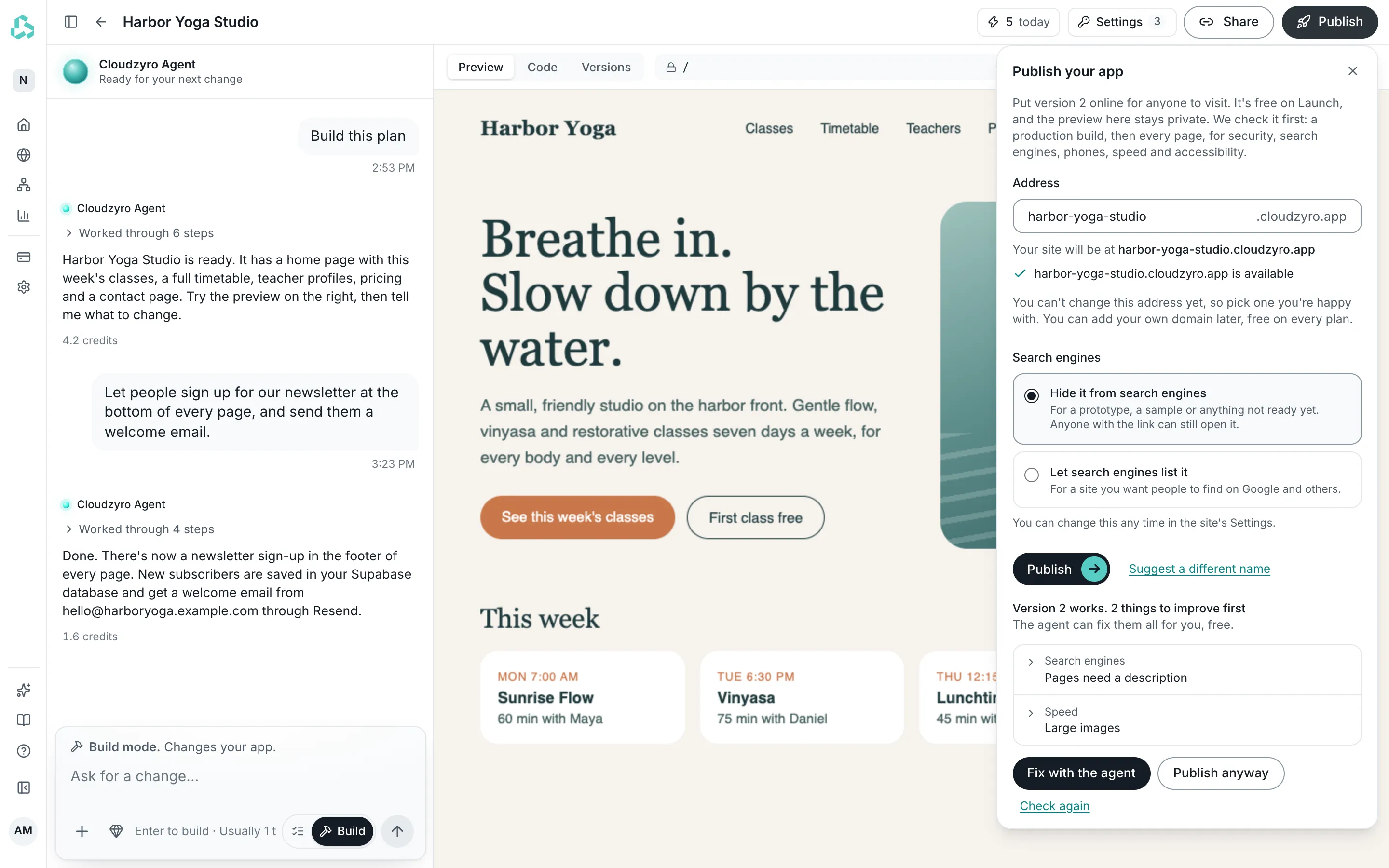
Publish for the first time
Section titled “Publish for the first time”-
On your app’s page, select Publish.
-
The Agent builds your app for production and checks each page like a visitor would: errors, page titles and descriptions, headings, images and form labels, how it fits on a phone, and how quickly it loads. It also makes sure no secret key would be visible to visitors. The check is free.
-
Anything marked Must fix, such as a build that fails or a secret key that would be visible, has to be fixed before you can publish: select Fix with the agent, wait for the fix, then select Check again. Other findings are suggestions: fix them the same way, or choose Publish anyway.
-
Check the address. It’s suggested from your app’s name, for example
bakery-site.cloudzyro.app, and you can change it. Addresses use 4 to 63 lowercase letters, numbers and hyphens. -
Under Search engines, choose Hide it from search engines (for a prototype, a sample or anything not ready yet) or Let search engines list it. You can change this any time in the site’s Settings.
-
Select Publish.
Your app is now a site on the free Launch plan, with business use allowed. It’s built and checked the same way as any other site, so if the new version doesn’t start, your previous one stays online and you can select Ask the agent to fix it.
Publish changes
Section titled “Publish changes”After the first publish, Publish shows what’s changed since the live version. Select it to put your latest version online. The address, domains, plan and the site’s version history stay as they are.
Use your own domain
Section titled “Use your own domain”Select Use your own domain in the Publish panel, or open the site in Sites & Apps and add the domain on its Domains tab. Custom domains are free on every plan. See Connect a custom domain.
To change the site’s plan, restore an earlier version or see its traffic, open it from Plan, versions and settings in the Publish panel. See Plans and Versions.
Change a site you already have
Section titled “Change a site you already have”You can open any of your sites in the Agent, including ones made with Claude, Cursor or an upload, and keep changing it by chatting.
-
In Sites & Apps, open the site.
-
Select Edit with Cloudzyro Agent. The Agent makes an app from the site’s live version, linked to that site.
-
Ask for changes as usual, then select Publish to put them on the same site.
Next time, the site shows Open in Cloudzyro Agent, which goes back to the same app.
Delete an app
Section titled “Delete an app”Owners and admins can delete an app from the … on its card in Your apps, or at the bottom of its settings. This removes the app, its chat, versions and settings, and its share links stop working. A site you published from it stays online: delete that in Sites & Apps if you want it gone too.