

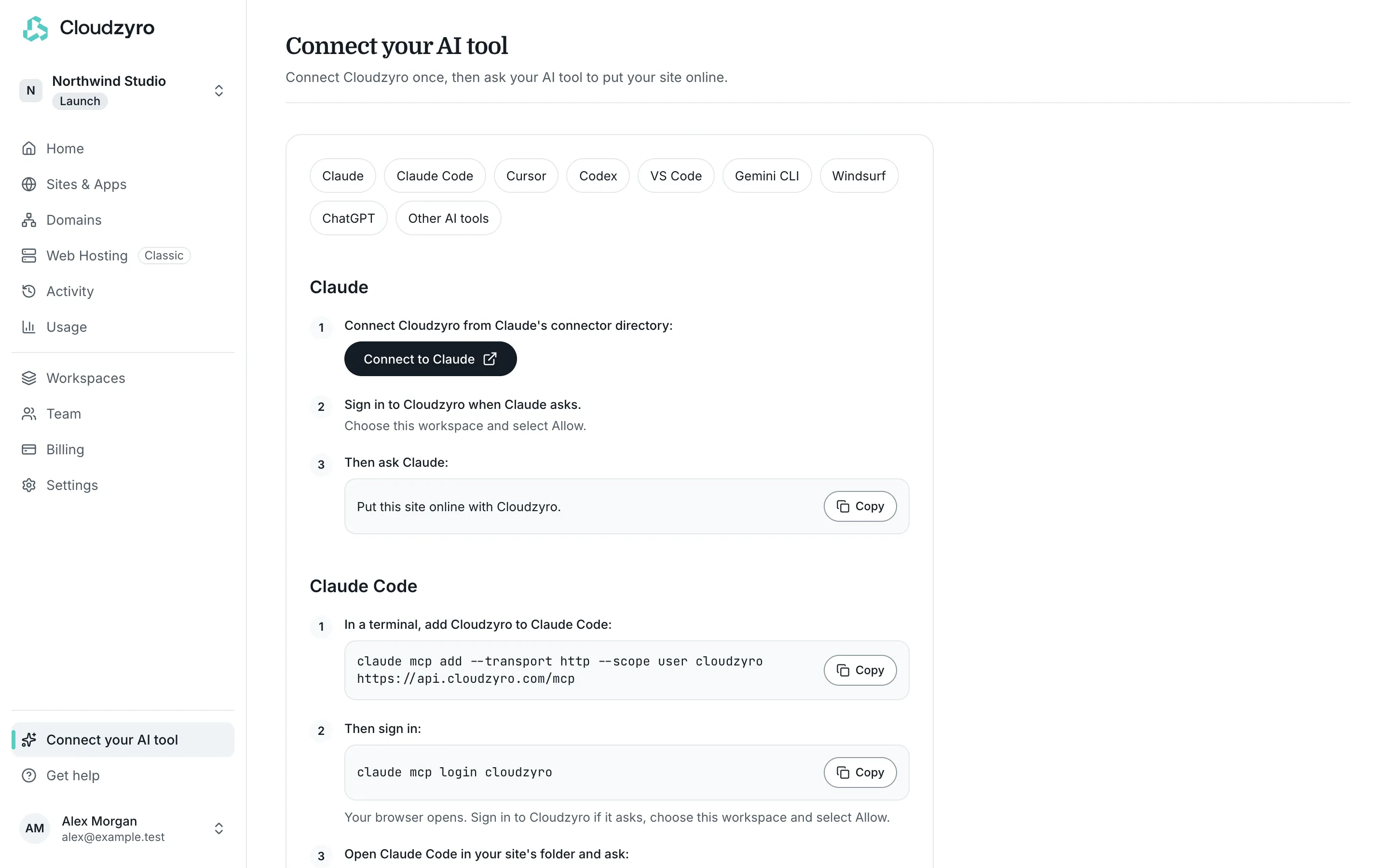
Connect your AI tool
Connect Cloudzyro to your AI tool once, then ask it to put your site online. There are no keys to copy: you add Cloudzyro’s address to your tool and sign in.
The address for every tool is:
https://api.cloudzyro.com/mcpThe same steps are in the console at https://console.cloudzyro.com under Connect your AI tool in the sidebar.
One workspace per connection
Section titled “One workspace per connection”When you sign in, you choose a workspace and select Allow. That connection works only with that workspace’s sites. To use another workspace, connect again and choose it. Only owners and admins can create sites and deploy. Members can connect a tool that can only look at sites, unless an owner or admin has changed Who can connect AI tools (in Settings, Security) so only owners and admins can connect.
Claude
Section titled “Claude”-
Open Cloudzyro’s listing in Claude’s connector directory at https://claude.ai/directory/cloudzyro and connect it. (In the console, Connect to Claude opens the same page.)
-
Sign in to Cloudzyro when Claude asks. Choose your workspace and select Allow.
-
Then ask Claude: “Put this site online with Cloudzyro.”
ChatGPT
Section titled “ChatGPT”-
In ChatGPT on the web, open Settings, then Apps, then Advanced settings, and turn on Developer mode.
-
Create an app named Cloudzyro. Paste
https://api.cloudzyro.com/mcpas the MCP server URL and choose OAuth for authentication. -
When ChatGPT asks you to sign in, sign in to Cloudzyro in your browser, choose your workspace and select Allow.
-
In a new chat, add Cloudzyro from the tools menu and ask: “Put this site online with Cloudzyro.”
Claude Code
Section titled “Claude Code”-
In a terminal, add Cloudzyro to Claude Code:
claude mcp add --transport http --scope user cloudzyro https://api.cloudzyro.com/mcp -
Then sign in:
claude mcp login cloudzyroYour browser opens. Sign in to Cloudzyro if it asks, choose your workspace and select Allow.
-
Open Claude Code in your site’s folder and ask: “Put this site online with Cloudzyro.”
Cursor
Section titled “Cursor”-
Open
~/.cursor/mcp.json(create it if it isn’t there), or add a new MCP server from Cursor’s settings, and add:{"mcpServers": {"cloudzyro": {"url": "https://api.cloudzyro.com/mcp"}}} -
Cursor shows that Cloudzyro needs a sign-in: select it. Sign in to Cloudzyro in your browser, choose your workspace and select Allow.
-
Open your site’s folder and ask Cursor’s agent: “Put this site online with Cloudzyro.”
-
In a terminal, add Cloudzyro to Codex:
codex mcp add cloudzyro --url https://api.cloudzyro.com/mcpThe Codex app and IDE extension share these settings. You can also add it there: open Settings, then MCP servers, then Add server, choose Streamable HTTP and paste the address.
-
Then sign in:
codex mcp login cloudzyroYour browser opens (in the app or extension, select Authenticate). Sign in to Cloudzyro, choose your workspace and select Allow.
-
Open Codex in your site’s folder and ask: “Put this site online with Cloudzyro.”
VS Code
Section titled “VS Code”-
Open the Command Palette, run MCP: Add Server, choose HTTP, paste
https://api.cloudzyro.com/mcpand name itcloudzyro. Or, in a terminal:code --add-mcp '{"name":"cloudzyro","type":"http","url":"https://api.cloudzyro.com/mcp"}' -
When VS Code asks, allow it to sign in. Sign in to Cloudzyro in your browser, choose your workspace and select Allow.
-
In Copilot Chat, switch to Agent and ask: “Put this site online with Cloudzyro.”
Gemini CLI
Section titled “Gemini CLI”-
In a terminal, add Cloudzyro to Gemini CLI:
gemini mcp add --transport http cloudzyro https://api.cloudzyro.com/mcp -
Start Gemini CLI and sign in:
/mcp auth cloudzyroYour browser opens. Sign in to Cloudzyro, choose your workspace and select Allow.
-
In your site’s folder, ask: “Put this site online with Cloudzyro.”
Windsurf
Section titled “Windsurf”-
In the Cascade panel, open the menu at the top right, open the MCP configuration file and add:
{"mcpServers": {"cloudzyro": {"serverUrl": "https://api.cloudzyro.com/mcp"}}} -
Save, refresh the MCP servers and sign in. Windsurf opens your browser: sign in to Cloudzyro, choose your workspace and select Allow.
-
Then ask Cascade: “Put this site online with Cloudzyro.”
Other AI tools
Section titled “Other AI tools”Any AI tool that can use remote MCP servers with sign-in can deploy to Cloudzyro.
-
In its MCP settings, add a server using Streamable HTTP (sometimes just called HTTP) with the address
https://api.cloudzyro.com/mcp. -
Sign in when your tool asks. Sign in to Cloudzyro in your browser, choose your workspace and select Allow.
-
Then ask it: “Put this site online with Cloudzyro.”
AI tools sometimes rename their settings. If a step doesn’t match what you see, add the same address in your tool’s MCP settings and sign in when it asks. Still stuck? Email support@cloudzyro.com.
See and disconnect connected tools
Section titled “See and disconnect connected tools”Connect your AI tool lists the tools connected to your workspace, who connected each one, when, and when it was last used. Owners and admins see and can disconnect every tool; members see and can disconnect their own. To remove one, click Disconnect, then confirm. It stops working with the workspace straight away. Your sites stay as they are, and you can connect it again at any time.
Next: What your AI tool can do, or go straight to Deploy a site with your AI tool.