

Put your first site online
This page takes you from no account to a live site at a free cloudzyro.app address, then onto your own domain. It takes a few minutes, and it’s free on the Launch plan.
1. Create your account
Section titled “1. Create your account”-
Type your email address and select Continue with email, or choose Continue with Google, GitHub, GitLab or Bitbucket.
-
If you used email, open the link we send you. It works once and expires in 10 minutes.
-
On Welcome to Cloudzyro, enter your name and, if you like, a workspace name. Check the console address, then select Continue. The console address is permanent, so pick one you’re happy with.
You land on Home, which shows the three ways to put a site online. More about this in Sign up and sign in.
2. Put your site online
Section titled “2. Put your site online”Pick whichever way you built your site.
Connect Cloudzyro to your AI tool once. After that, you just ask it to deploy.
-
On Home, under Deploy from your AI tool, select Connect to Claude or Connect to ChatGPT. For Claude Code, Cursor, Codex or another tool, copy the connector address instead:
https://api.cloudzyro.com/mcp. -
Sign in to Cloudzyro when your AI tool asks, and choose the workspace it should use.
-
In your AI tool, in your site’s folder or chat, ask: “Put this site online with Cloudzyro.”
-
Your AI tool picks a name, sends the files and tells you when the site is live.
Step-by-step instructions for each tool are in the console under Connect your AI tool, and in Connect your AI tool.
-
On Home, under Upload a folder, drop your site’s folder onto the box, or select choose a folder or a .zip file.
-
Choose your site’s address, for example
my-bakery. It becomesmy-bakery.cloudzyro.app. Names use 3 to 63 lowercase letters, numbers and hyphens. -
Select Continue. The files upload and the deploy starts.
Uploads can be up to 100 MB on Launch. The folder should have an index.html or a package.json at its top level. See Upload a folder.
-
On Home, under Import from a repository, select GitHub. GitLab, Bitbucket and Another Git host work the same way.
-
Choose your site’s address, then select Continue.
-
Select Continue with GitHub to sign in, then Install on GitHub on the account or organisation that owns the repository. We suggest giving access only to the repositories you want to deploy. Cloudzyro reads their files and never changes your code.
-
Pick the repository, branch and folder (leave the folder as Top of the repository unless your site is in a subfolder), then select Deploy site.
From then on, every push to that branch puts a new version online by itself. See Deploy from Git.
3. Watch it go live
Section titled “3. Watch it go live”The console opens the deploy’s page, showing each step. Once it starts, it usually takes about a minute, and you can leave the page: we’ll email you when it’s live, or if something goes wrong.
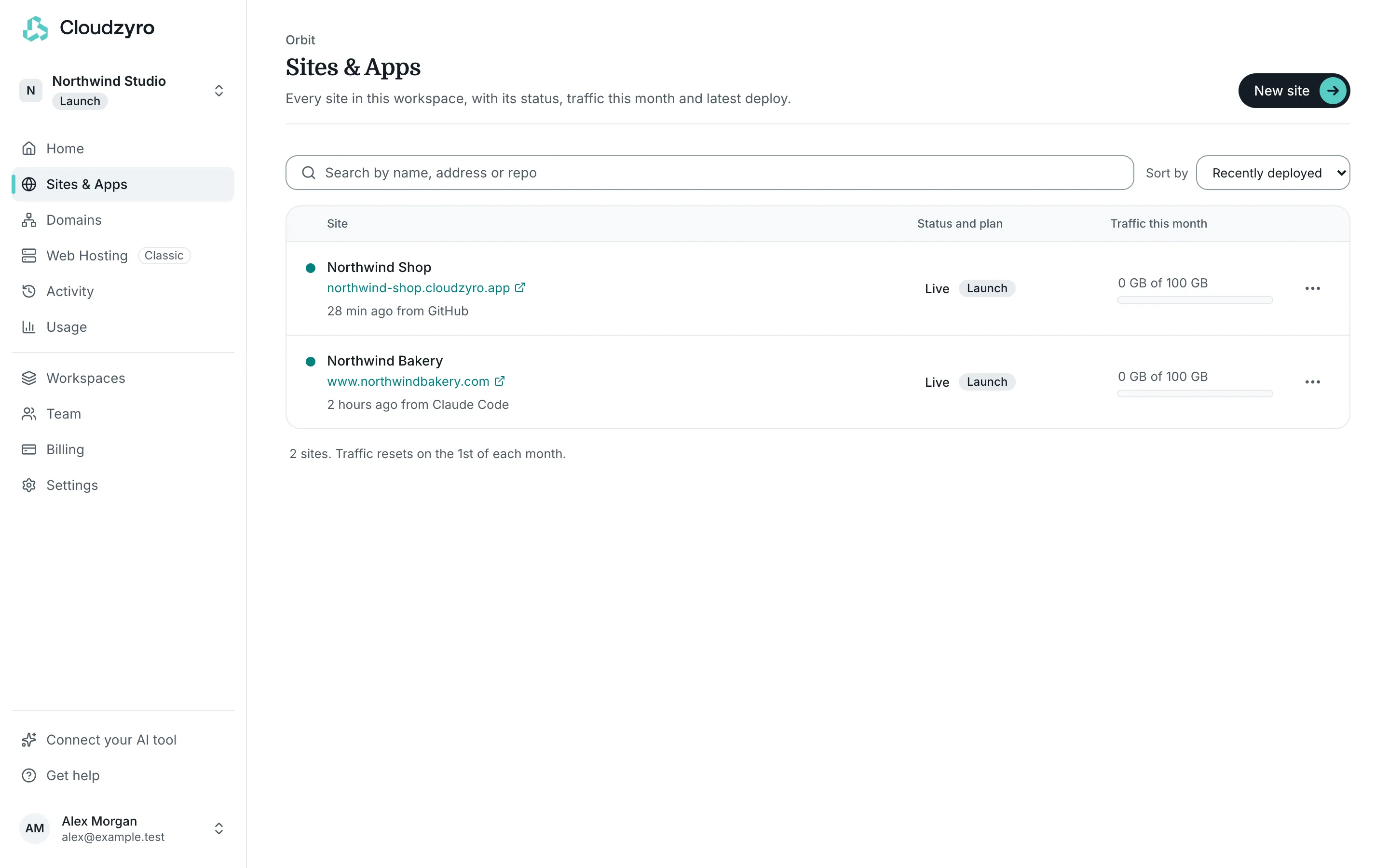
When it’s done, you’ll see Your site is live with its address and an Open site button.
4. Add your own domain
Section titled “4. Add your own domain”Your own domain is free on every plan, and the cloudzyro.app address keeps working too.
-
Open your site and go to its Domains tab.
-
Type the address visitors will use, for example
www.example.com, and select Add domain. -
At your DNS provider, add the CNAME record the console shows:
wwwpointing todomains.cloudzyro.app. -
To send visitors who type
example.comtowww.example.com, also add an A record for the bare domain pointing to173.234.137.167. -
Wait for the domain’s status to change from Waiting for DNS to Getting the certificate, then Live. This usually takes 5 to 15 minutes. We’ll email you when it’s live.
If you bought the domain with Cloudzyro, choose your site as what it’s for on the domain’s page, and we set the records for you. Full details are in Connect a custom domain, and if it’s stuck, see Domain not working.