

Deploy a site with your AI tool
Once Cloudzyro is connected to your AI tool, you can put a site online just by asking. Your tool creates the site, sends its files and tells you when it’s live. This page explains what happens along the way and where to follow it in the console.
If you haven’t connected your tool yet, start with Connect your AI tool.
Ask your tool to deploy
Section titled “Ask your tool to deploy”-
Open your AI tool in the folder you built your site in (for tools that work with files on your computer, like Claude Code, Cursor or Codex), or in the chat where you built it.
-
Ask it something like:
Put this site online with Cloudzyro.
Or, for a site you already have:
Deploy this folder to my-portfolio on Cloudzyro.
-
If it’s a new site, your tool checks that the address you want is free and creates the site. Addresses use 3 to 63 lowercase letters, numbers and hyphens, and become
<name>.cloudzyro.app. -
Your tool sends the site’s files. For a project folder on your computer, it zips the folder and uploads it with a one-time link. For a small site, it can send a few files directly.
-
Your tool follows the deploy and tells you when the site is live, with its address.
Only the workspace’s owners and admins can create sites and deploy. If you’re a member, your tool can look at sites but can’t change them.
What happens to your files
Section titled “What happens to your files”We check your files before anything goes online, just as we do for an upload in the console. We work out what kind of site it is:
- A static site with an
index.htmlat the top level goes online as it is, with no build. - A site with a build step, such as Vite, React or Astro, is built and the files it makes are served.
- A Node app, including Next.js, is built and run on Node 22. It needs a
startscript inpackage.json.
If something’s missing, such as a build or start script, your tool is told what to change before trying again.
Follow the deploy
Section titled “Follow the deploy”Your tool can check on the deploy itself and will tell you how it’s going. You can also follow it in the console at https://console.cloudzyro.com:
-
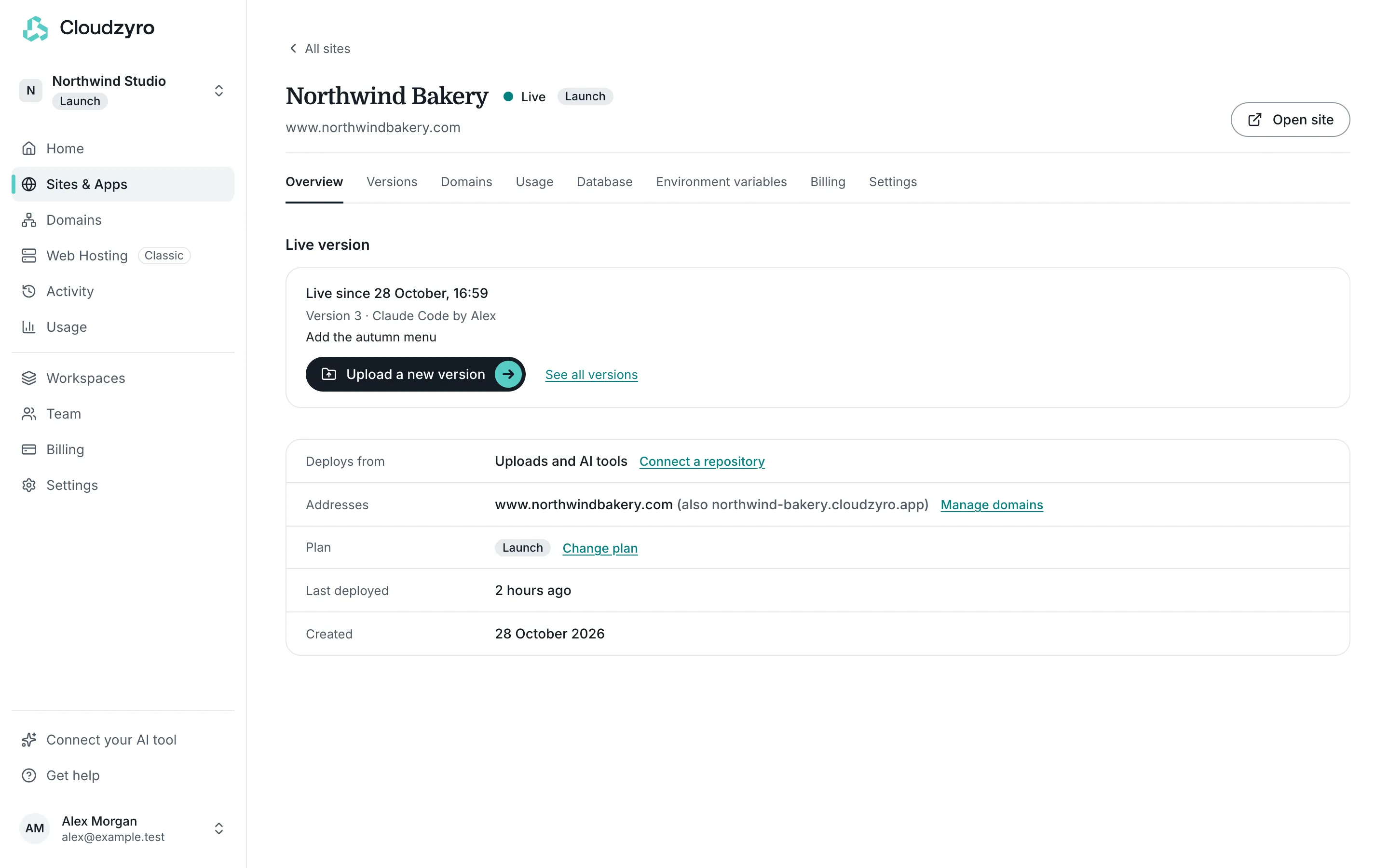
Open Sites & Apps and choose your site.
-
While it’s updating, the site’s header links to the deploy. You can also open the Versions tab and choose the newest version.
-
The deploy page shows each step: Waiting to start, Building, Starting and Live.
Once it starts, a deploy usually takes about a minute. You can leave the page: for a new site, we email you when it’s live, and we email you if something goes wrong.
Your current version stays online until the new one is ready, so visitors never see a half-finished update.
If a deploy doesn’t go live
Section titled “If a deploy doesn’t go live”The deploy page explains what went wrong, shows the last lines of the build log (with any secrets removed) and suggests a fix. Click Ask your AI to fix it (or Ask Claude to fix it, naming the tool that sent the version) to copy a ready-made message to paste into your tool. Your tool also gets the same explanation when it checks the deploy, so you can often just ask it to fix the problem and deploy again.
If your site was already live, the previous version stays online.
Your live address
Section titled “Your live address”When the deploy finishes, the deploy page shows your site’s address with Open site. It’s https://<name>.cloudzyro.app, or your own domain if you’ve connected one and made it the main address.
To change your site later, ask your tool to deploy again. Each deploy becomes a new version you can restore if you need to go back.