

Plan, then build
In Plan mode, the Agent asks what it needs to know and writes a plan before it builds anything. This page covers the plan, the build, and how to keep changing your app afterwards.
Answer the questions
Section titled “Answer the questions”After your first message, the Agent replies with a few questions, such as which pages you need, whether prices include tax, or which days you’re closed.
-
For each question, pick an answer (Pick one or Pick any), or type your own.
-
Skip any question you don’t mind about.
-
Select Send answers.
To skip all the questions, select Skip the questions and write the plan with your best judgment.
Agree the plan
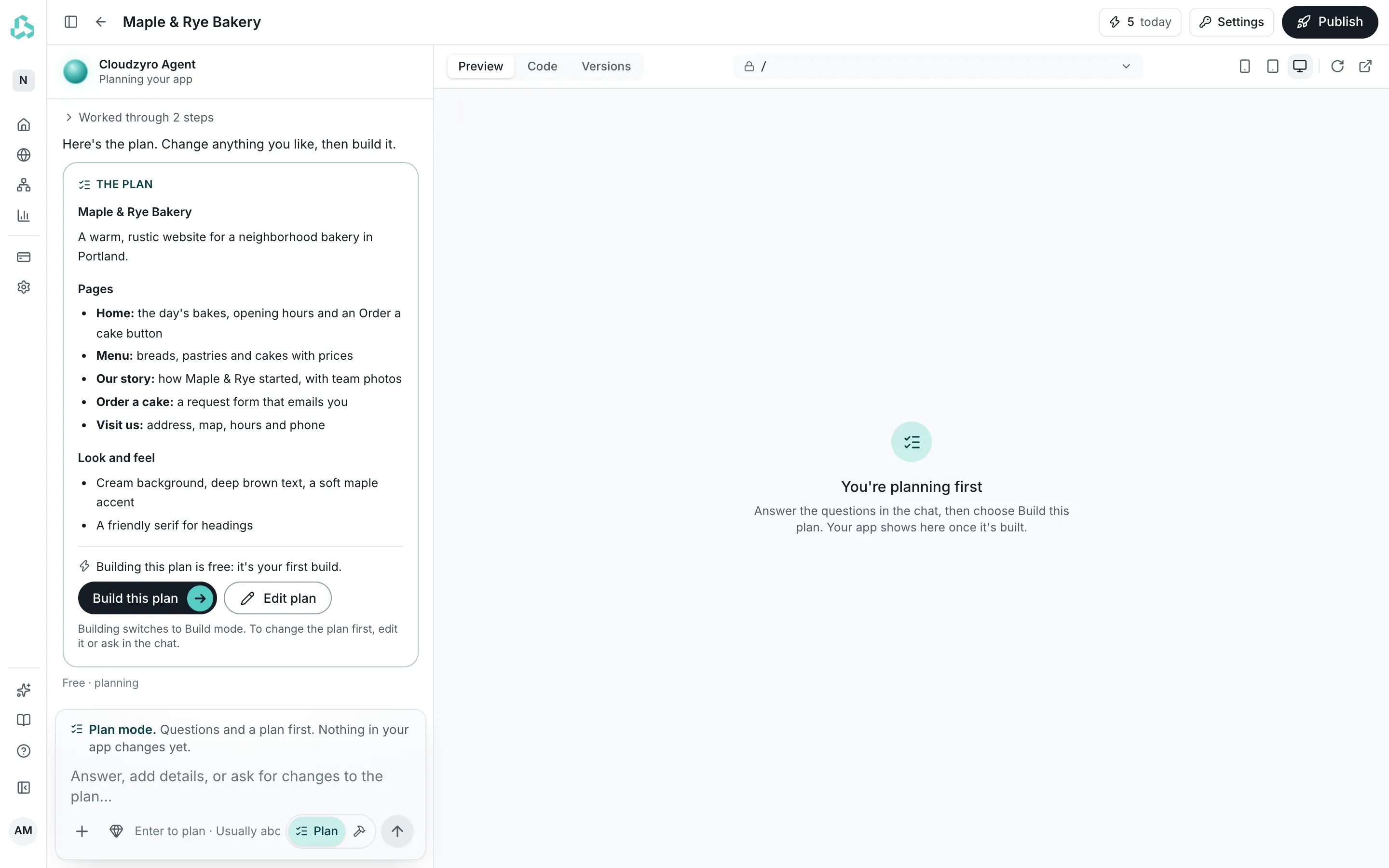
Section titled “Agree the plan”The Agent then writes The plan: every page and what’s on it, the look, and anything your app needs, such as sign-in or a database.
- To change it, type what you’d like in the chat, for example “Add a gallery page”, and the Agent updates the plan.
- To change it yourself, select Edit plan, make your changes and select Save plan.
- When it’s right, select Build this plan.
Planning uses credits like any other message, usually less than one a message.
Watch it build
Section titled “Watch it build”While the Agent works, the chat shows what it’s doing, such as Building your app and Writing code, and the preview fills in as soon as the app runs. Your first build is free.
To stop a change halfway, select Stop. You can then edit your message and send it again.
Ask for changes
Section titled “Ask for changes”Type what you want in the chat, in plain words: “Make the header darker”, “Add a booking form to the Contact page”, “Shorten the text on the home page”. Each finished change is saved as a version.
For a bigger change, switch to Plan first: the Agent plans the change with you before it touches your app.
Point at the page
Section titled “Point at the page”The preview bar has two tools:
- Select: click anything on the page, then say what to change about it, such as “make this button teal”.
- Edit text: click a text and type. Enter keeps it, Esc undoes it. Your edits are sent to the Agent, which saves them into your app.
Use Desktop, Tablet and Phone to check how the page looks on each, and the page menu to move between pages.
Versions and code
Section titled “Versions and code”Every finished change, and every restore, is a version.
-
Open Versions on your app’s page. Each version shows what was asked for.
-
To go back, select Restore on a version. Restoring keeps every later version in the list too, so you can change your mind.
-
Select View code to read the files of a version, or Download as a zip to keep the code.
When a database change is needed
Section titled “When a database change is needed”If your app uses Supabase and the Agent needs to change your database (a new table, for example), it shows the change in the chat as A change to your database, waiting for you. Nothing runs until you select Approve and apply. If a change would remove data or tables, the card warns you first. See Connect Supabase and Resend.
On a Pro plan you can turn on Ultra to build and plan with our most powerful model. It uses more credits per message; each message shows what it used.